

Administrator Roles
When inviting an administrator to a project, you assign one of four roles. Each role grants the following permissions for all options and submissions.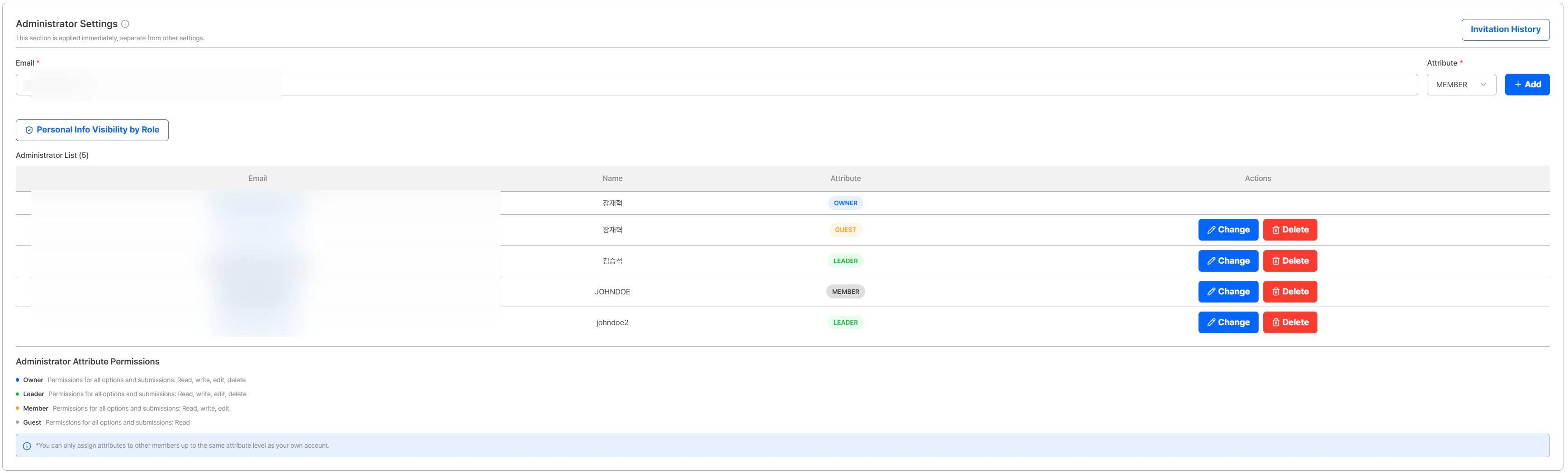
| Role | Read | Write | Edit | Delete |
|---|---|---|---|---|
| Owner | O | O | O | O |
| Leader | O | O | O | O |
| Member | O | O | O | - |
| Guest | O | - | - | - |
- Owner / Leader: Full access — read, create, edit, and delete all options and submissions.
- Member: Can read, create, and edit, but cannot delete.
- Guest: Read-only access.
When assigning a role to another administrator, you can only grant up to the same role level as your own account. For example, an administrator with the Member role can only assign Member or Guest to others.
PII Visibility by Role
For each role, the visibility of personal information fields in the submission detail view is controlled. Fields that are unchecked are masked for administrators with that role.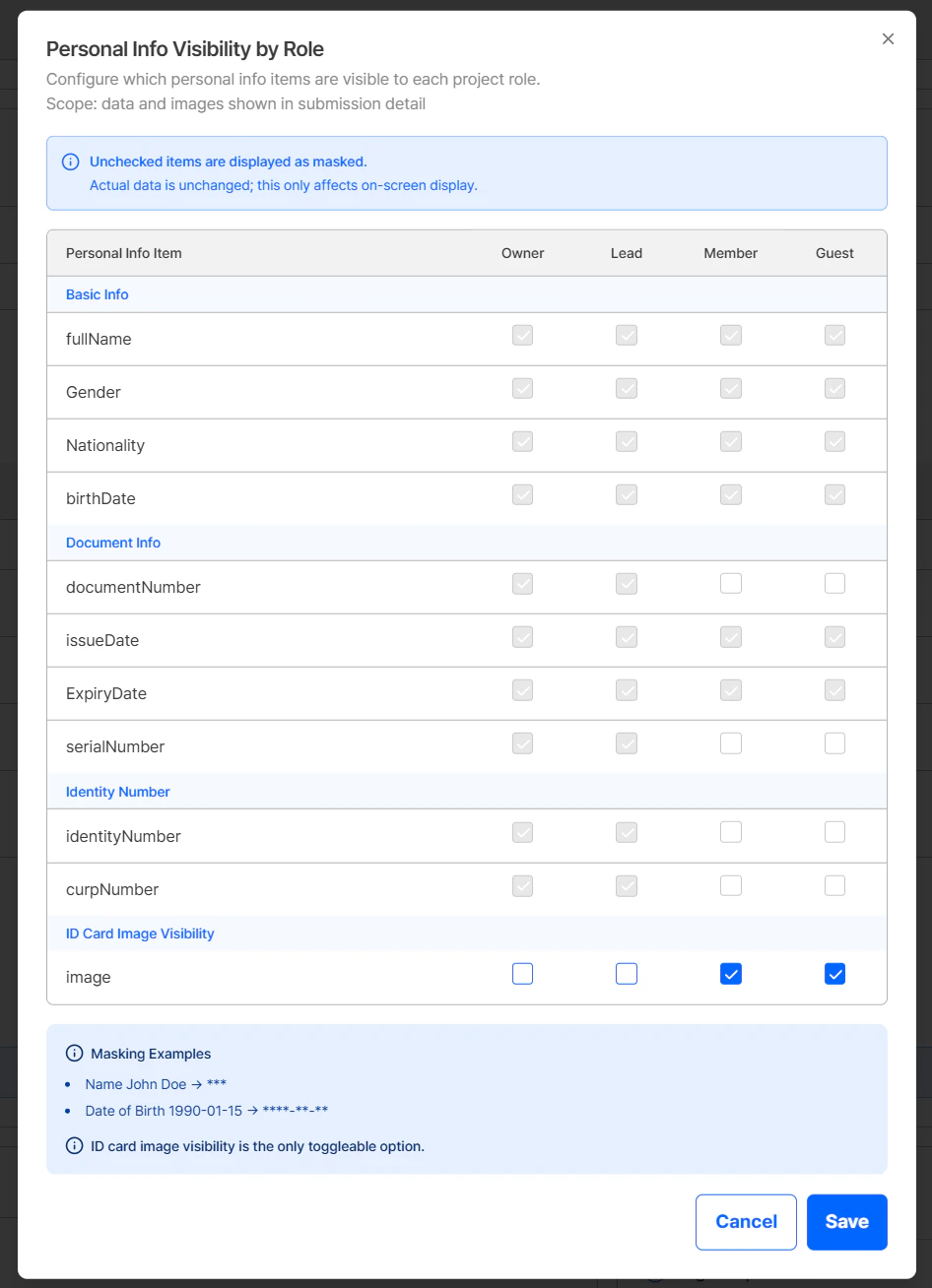
| Category | Fields | Currently configurable |
|---|---|---|
| Basic Information | fullName, Gender, Nationality, birthDate | Settings to be provided later |
| Document Information | documentNumber, issueDate, ExpiryDate, serialNumber | Settings to be provided later |
| Identity Numbers | identityNumber, curpNumber | Settings to be provided later |
| ID Photo | image | Can be toggled on/off |
Currently, only the ID Photo (image) field can be adjusted in the role-based PII visibility settings. The other fields cannot be adjusted yet — configurable settings will be provided later.
- Name:
John Doe→*** - Date of birth:
1990-01-15→****-**-**
Role-based PII masking applies only to what is displayed on the dashboard screen. Actual stored data and API responses are not affected.
Relationship with the Project-Level Setting
The Privacy Display Settings (project-level) toggle applies a blanket blur/mask to specific fields for all administrators at once. The role-based PII visibility setting is a finer-grained layer on top, allowing you to control which fields are exposed per role independently.Permission-Based Feature Control
Actions that exceed an administrator’s permissions (for example, a Member attempting to delete a submission) result in the corresponding button being hidden or a permission notice being shown. This prevents administrators from inadvertently performing actions outside their authorized scope.Where to Configure
Role assignment and PII visibility settings are both managed under Project Management > Project Settings > System Operation.System Operation
Manage administrator role assignment and PII visibility settings
May 2026 Update
New feature updates including the RBAC release